Sunday, June 02, 2013

Converting a local Subversion repository to Git

There many articles there about converting a subversion repository to git, but I decided to write my article that describes the conversion of a simple subversion repository (trunk only) stored in the local file system. I have a couple of these repositories that I needed to convert to git and then push them to bitbucket.org.

Note that you will still need svn installed in addition to git. If you are using Mac OSX, svn used to be installed by default but that changed in Mountain Lion (10.8). Since I have XCode already installed, I just went to Xcode > Preferences > Downloads > Command Line Tools > Install. See details here.

Create the Authors Mapping File

The first step is to create a mapping file for the subversion users to the git users. With the help from here, I run the command below to create the initial mapping file. In my case, the local subversion repository is located at //Users/lerocha/svn-repo:

svn log file:///Users/lerocha/svn-repo | sed -ne 's/^r[^|]*| \([^ ]*\) |.*$/\1 = \1 <\1@example.com>/p' | sort -u > ~/authors.txt

Open the generated file (~/authors.txt) in a text editor and change it from this:

lerocha = lerocha <lerocha@example.com>

Into this:

lerocha = Luis Rocha <luis@luisrocha.net>

Convert to a local Git repository

With the help from this stackoverflow answer, run the following commands to initialize the local git repository and import the revisions from subversion:

mkdir repo
cd repo
git svn init file:///Users/lerocha/svn-repo --no-metadata
git config svn.authorsfile ~/authors.txt
git svn fetch

Your local git repository should contain all revisions from your local subversion.

Push to a remote repository

Since we want to push it to bitbucket.org (private repositories are free!), you first create an empty repository in bitbucket.org and then run the following commands below to push to it:

git remote add origin ssh://git@bitbucket.org/youruser/yourrepo.git
git push -u origin --all   # to push up the repo for the first time

Sunday, December 09, 2012

Chinook Database is now available on NuGet

Chinook sample database is now available on NuGet. There are 3 packages available: 
  • Chinook Database SQL Scripts: contains the SQL scripts for all supported databases (SQL Server, SQL Server Compact Edition, SQLite, Oracle, MySQL, PostgreSQL, DB2 and EffiProz. In addition, it also contains batch files to run these scripts with the respective command prompt tools.
  • Chinook Database for SQLite: contains a SQLite file with the Chinook database.
  • Chinook Database for SQL Server Compact 4.0: contains a SQL Compact 4.0 file with the Chinook database.

You can install the Chinook database within Visual Studio using the following instructions and searching for 'Chinook':


For now on, new releases will be available on Codeplex download page and also on Nuget.

Enjoy!

Sunday, December 02, 2012

Chinook Sample Database 1.4 Released

The Chinook Database is a sample database available for multiple database systems. It can be created by running a single SQL script. Chinook database is an alternative to the Northwind database, being ideal for demos and testing ORM tools targeting single and multiple database servers.

The Chinook Database represents a media store, including tables for artists, albums, media tracks, invoices and customers. The media information was generated from my iTunes library file, but anyone can download its source code and use their own iTunes library information. The sales information is auto-generated for a 4 years period. You can see the Chinook data model here.

This new version includes support for DB2 and PostgreSQL. Thanks to @brice_lambson for implementing the PostgreSQL support! Chinook database is available for:

  • DB2 (new)
  • EffiProz
  • MySQL
  • Oracle
  • PostgreSQL (new)
  • SQL Server
  • SQL Server Compact
  • SQLite

You can download the latest release from here. There are available SQL scripts for each database system and also embedded database files for SQL Server Compact and SQLite.

Monday, March 05, 2012

Unit Testing an Entity Framework Data Access Layer

One approach to write unit tests for a data access layer implemented using Entity Framework that targets SQL Server is to use a local test database SQL Server Compact Edition. The test database will have the same schema as the real application database, and it will contain the minimun necessary data for your test cases. 

The only thing to keep in mind is that you will need to restore the previous state of the test database after each unit test run. There are multiple approaches such as to recreate the database before each test or simply restore a backup file. One approach that I like is to run the test under a TransactionScope.  In this approach, you create a TransactionScope object before the test runs and call TransactionScope.Dispose after the test is completed. Since TransactionScope.Complete is not called, the Dispose method will rollback the changes. That is, you SQL Compact database will be back to the state before running the test.

If you are using xUnit, then your unit test class will need to implement the IDisposable interface, create the TransactionScope in the constructor and dispose it in the Dispose method as shown below:

public class MyDataAccessUnitTests : IDisposable
{
  private TransactionScope _transactionScope;

  public MyDataAccessUnitTests()
  {
    _transactionScope = new TransactionScope();
  }

  [Fact]
  void Test1()
  {
    // TODO: implement it.
  }

  [Fact]
  void Test2()
  {
    // TODO: implement it.
  }

  public void Dispose()
  {
    _transactionScope.Dispose();
  }
}


If you are using NUnit or MSTest, then you can create and dispose the TransactionScope object in the following methods:

xUnit NUnit MSTest
new TransactionScope() Constructor [SetUp] [TestInitialize]
TransactionScope.Dispose IDisposable.Dispose [TearDown] [TestCleanup]

I hope this helps!

Tuesday, December 06, 2011

Data Access Performance Comparison in .NET

When writing data access code you are probably using some sort of ORM or data mapper to make your life easier while retrieving and persisting data. We all know that this does not come for free, ORMs allow you to move faster, but there is always a performance hit. I recently started reading about Dapper .NET, an open-source, lightweight, single-file object mapper that was developed for the stackoverflow.com site to execute high performance queries. After seeing its amazing performance results on their project page, I decided to write my owns performance tests to compare it to other ORMs (Entity Framework, NHibernate), and also to plain ADO.NET code.

For these tests, I am using the Chinook Database for SQL Server. I defined a simple repository interface and implemented it using different data access approaches. The interface implemented is:

public interface IRepository
{
 Artist GetArtistById(int id);
 IEnumerable<Song> GetSongsByArtist(string name);
}

The first method executes a simple query in a single table by the primary key. The second method executes a query in multiple tables using joins.

There are multiple implementations of this repository interface including plain ADO.NET code with DataReaders, Entity Framework, NHibernate and Dapper .NET. For the Entity Framework, there are four implementations: Linq To Entities, compiled Linq To Entities, native SQL query and stored procedures. For NHibernate, there are implementations with HQL query, native SQL query, and stored procedure.

All the code is available at https://github.com/lerocha/DotNetDataAccessPerformance.

Single Table Query by Primary Key

The first set of tests is to execute a simple query in a single table to get one record by the primary key. The SQL query is:

SELECT ArtistId, Name FROM Artist WHERE Artist.ArtistId=@id

The following table contains the results per multiple runs:

1 run10 runs100 runs500 runs1000 runs
DataReaderNativeQuery0.02.024.9134.1264.4
DataReaderStoredProcedure0.02.226.3133.8266.4
DapperNativeQuery0.12.528.0141.5285.6
DapperStoredProcedure0.02.428.0137.5276.1
EntityFrameworkCompiledLinqQuery2.222.5207.21041.02099.8
EntityFrameworkLinqToEntities5.525.2267.71263.62522.5
EntityFrameworkNativeQuery0.78.285.2426.0859.5
EntityFrameworkStoredProcedure1.45.258.3275.8552.8
NHibernateHqlQuery0.84.448.1253.6509.5
NHibernateHqlQueryStrongType0.14.147.2251.4508.7
NHibernateNativeQuery1.14.446.1256.9490.1
NHibernateStoredProcedure0.05.257.2294.0589.8

The 1-run test is executed twice, the first execution result is not shown since I am only considering hot start. The following chart shows the results of 1,000 runs. As you can see, using Entity Framework with Linq To Entities (non-compiled) has the worst performance result (2,552.5 ms). It gets a little bit better if you use EF compiled Linq query (2,099.8), then improvements starts when using EF with native query (859.5 ms). EF using stored procedure and all NHibernate approaches are way better, all around 500 ms. And finally, the performance of Dapper is very close to the plain ADO.NET code, providing an level of abstraction with minimal performance impact.


Multiple Table Query with Joins

The second test executes joins in multiple tables and filters by a non-key column. The SQL query is:

 SELECT Album.Title as AlbumName, 
 Track.Name as SongName, Artist.Name as ArtistName
 FROM Artist
 INNER JOIN Album ON Album.ArtistId = Artist.ArtistId
 INNER JOIN Track ON Track.AlbumId = Album.AlbumId
 WHERE Artist.Name=@name

The following table contains the results per multiple runs:

1 run10 runs100 runs500 runs1000 runs
DataReaderNativeQuery0.05.963.0321.8644.2
DataReaderStoredProcedure0.06.265.0332.3658.6
DapperNativeQuery0.46.468.0346.1685.5
DapperStoredProcedure0.16.767.2342.3679.7
EntityFrameworkCompiledLinqQuery1.09.9103.3525.61071.0
EntityFrameworkLinqToEntities5.658.2539.52699.95398.3
EntityFrameworkNativeQuery1.113.1135.0658.81328.3
EntityFrameworkStoredProcedure1.19.799.0489.1983.7
NHibernateHqlQuery3.435.6359.51806.23647.1
NHibernateHqlQueryStrongType6.868.3681.53430.06841.4
NHibernateNativeQuery1.110.6103.2517.7998.7
NHibernateStoredProcedure0.810.1102.0516.21033.8

The following chart shows the results of 1,000 runs. As you can see, the slowest implementation is NHibernate with strong type query, e.g. using NHibernate.IQuery.List(), it took 6,841 ms. EF with LinqToEntities (non-compiled) is a little bit faster (5,398 ms). Using NHibernate without strong type query, e.g. using NHibernate.IQuery.List() is significant faster (3,647 ms) than its strong type equivalent (6,841 ms). Here, we can see the performance improvement when using EF compiled Linq queries (1,071 ms) in comparison with EF non compiled Linq To Entities (5,398 ms). The EF compiled Linq query implementation showed performance equivalent to EF with stored procedures, and NHibernate with native query and stored procedure. And finally, the performance of Dapper (679-685 ms) is again very close to the plain ADO.NET code (644-658 ms), with minimal performance impact.


The performance improvements using Dapper in comparison with Entity Framework and NHibernate is very significant. For database reads that need a high performance execution, you might consider using Dapper to get the best performance with some good abstraction from plain ADO.NET code.

The source code of these tests is available at github and I will continue to work on it to incorporate any feedback and also add additional tests for adding, deleting and updating records. Stay tunned!

Tuesday, October 11, 2011

Using Powershell with Application Pools

While developing Web applications and services using IIS, you need to recycle the application once in a while. You could just run iisreset, but sometimes you only want to affect one specific application pool. If you are using IIS7 or later, you could use appcmd.exe, but if you have some legacy then one option would be powershell. For example, to recycle the ASP.NET 4 application pool using powershell, you can run:

# Recycle the ASP.NET 4 application pool
([ADSI] "IIS://localhost/W3SVC/AppPools/ASP.NET v4.0").psbase.invoke("recycle")

# Stop the ASP.NET 4 application pool:
([ADSI] "IIS://localhost/W3SVC/AppPools/ASP.NET v4.0").psbase.invoke("stop")

# Start the ASP.NET 4 application pool:
([ADSI] "IIS://localhost/W3SVC/AppPools/ASP.NET v4.0").psbase.invoke("start")

# Verify the ASP.NET 4 application pool state: 1 = starting, 2 = started, 3 = stopping, 4 = stopped
([ADSI] "IIS://localhost/W3SVC/AppPools/ASP.NET v4.0").AppPoolState
Enjoy!

Sunday, October 09, 2011

Avoiding MvcBuildViews build time impact in developers environment by using ASP.NET compiler as an external tool


ASP.NET Razor views (.cshtml) and Web Form views (.aspx) are only compiled by the Web server when they are needed (runtime) and not by Visual Studio when you build your solution (build time). The MvcBuildViews option enables a post-build task (AspNetCompiler Task) to compile your ASP.NET views during build time, thus enabling you to catch syntax errors in the views earlier in the development process. However, enabling MvcBuildViews can significantly increase your build time depending on the size of the Web project you are working on.

To avoid the build time increase, you can enable MvcBuildViews in your build environment only (Release builds) and developers can use the aspnet_compiler.exe as an Visual Studio external tool to precompile ASP.NET views on demand instead of on every build to avoid the building time impact. This way, you will get the best of both worlds: be able to compile views at build time, but not on every build, only when you need it.

To enable MvcBuildViews in release builds only, you can follow the steps described here. To use aspnet_compiler.exe as an external tool in Visual Studio:

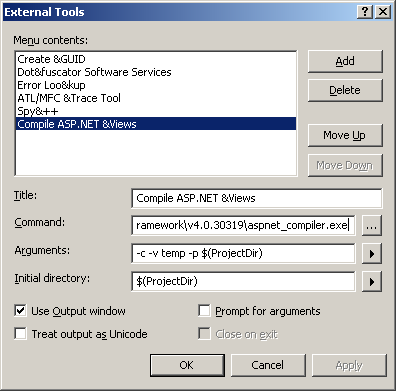
  • Go to Visual Studio Tools menu, and click on External Tools. 
  • Enter a title and consider adding a shortcut. I am using Compile ASP.NET &Views and I just use the short cut ALT+T+V to run it.
  • Enter the ASP.NET compiler command. For .NET 4, it is C:\WINDOWS\Microsoft.NET\Framework\v4.0.30319\aspnet_compiler.exe.
  • Add the following arguments: -c -v temp -p $(ProjectDir)  -  (option -c forces a full rebuild; option -v defines the virtual path of the application to be compiled, if you use temp, it will be in C:\WINDOWS\Microsoft.NET\Framework\v4.0.30319\Temporary ASP.NET Files\temp; option -p defines the physical path of the application to be compiled, by using $(ProjectDir), it will compile the views of the current project in Visual Studio).
  • Enter the initial directory: $(ProjectDir)
  • I use the output window, which makes easier if you have errors and want to open the file with errors by double clicking on it.
  • Press OK and you are all set. Just make sure to run this command when you are in your ASP.NET web project, or selecting or editing any of its files.

Alternately, you could import the following registry key:

[HKEY_LOCAL_MACHINE\SOFTWARE\Microsoft\VisualStudio\10.0\External Tools\Compile ASP.NET &Views]
"ToolCmd"="C:\\WINDOWS\\Microsoft.NET\\Framework\\v4.0.30319\\aspnet_compiler.exe"
"ToolDir"="$(ProjectDir)"
"ToolArg"="-c -v temp -p $(ProjectDir)"
"ToolOpt"=dword:00000018

One advantage of using the aspnet_compiler.exe as external tool is to be able to continue work on Visual Studio 2010 while watching the results in the output window. This is way better than using MvcBuildViews in developers build since Visual Studio 2010 hangs and display that annoying message that it is busy.

Happy building!

Spring Boot Configuration Properties Localization

Spring Boot allows to externalize application configuration by using properties files or YAML files. Spring Profiles  provide a way to segr...